Preventing Production Downtime from Terraform Changes
If you’ve ever shipped an infrastructure change using Terraform and suddenly watched production services go dark — you’re not alone. In the last project, a "simple" Terraform change taught me a big lesson: even well‑written infrastructure as code can accidentally cause downtime if we don’t pay attention to how resources are replaced. I would like to share this experience with you, hoping it helps you avoid similar pitfalls in your own Terraform projects.
The good news:
- We caught it in staging, not production.
- It led to a much safer pattern for how I now handle Terraform changes, especially around AWS Lambda and permissions.
In this post, I’ll walk you through:
- The real incident that caused a temporary outage in our STG environment
- Why Terraform’s default behavior caused it
- How we used
create_before_destroyand alternative strategies to fix it - A few practical checks you can add to your own
terraform planreview
1. The Downtime problem
The story starts with a performance optimization. We wanted to enable AWS Lambda SnapStart to reduce Lambda cold start time.
Our flow looked like this:
- Users upload files.
- Our app sends those files to an S3 bucket.
- S3 triggers an AWS Lambda function to process the files (for example, transcription).
- Terraform manages:
- The Lambda function
- The S3 bucket
- The aws_lambda_permission that lets S3 invoke that Lambda
On paper, this was just a small change on target Lambda function ARN in the aws_lambda_permission resource. Nothing scary… until we checked staging.
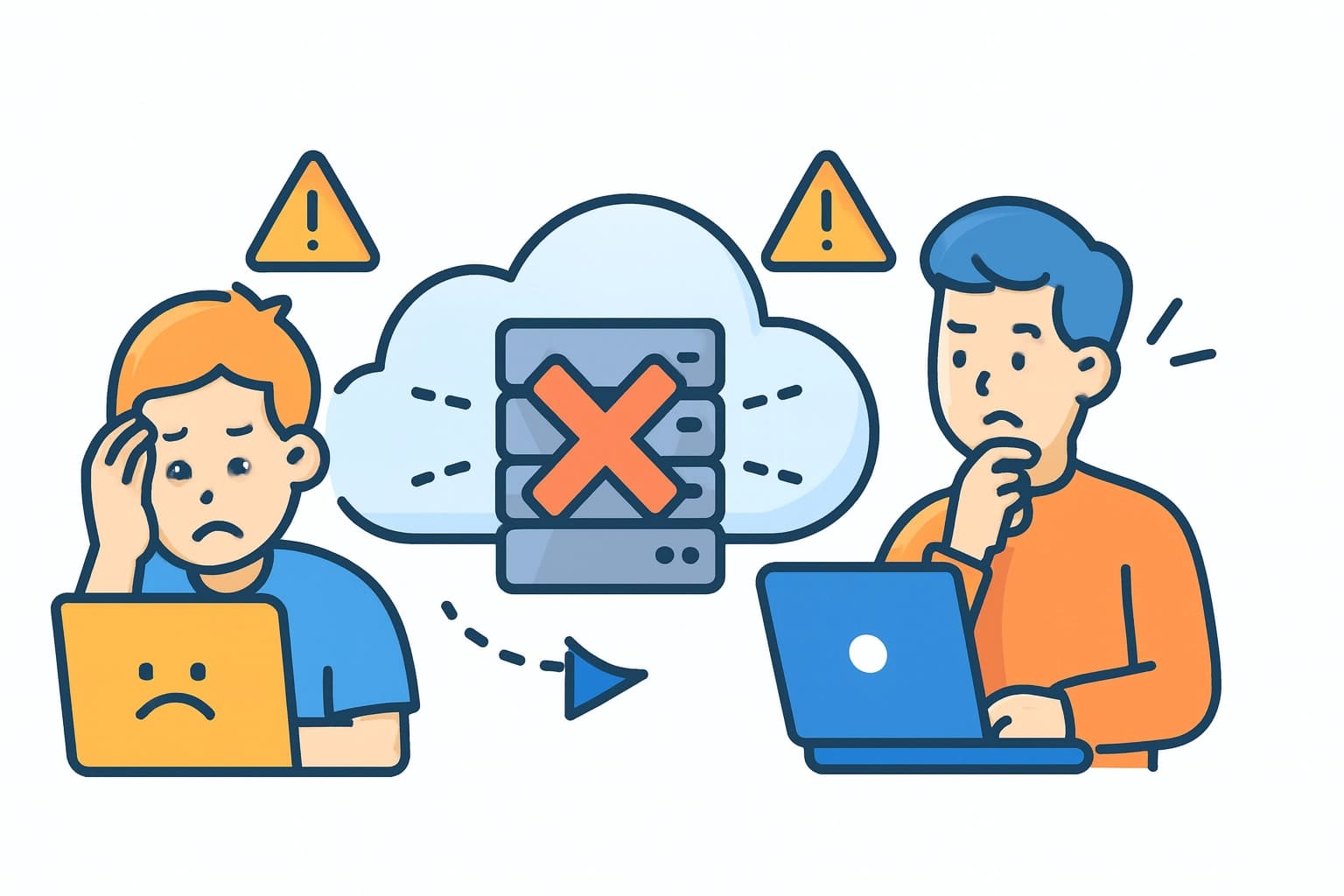
2. Why Terraform “broke” our Lambda integration
To understand this, we need to revisit how Terraform works and how it decides to update or replace resources.
Core Terraform workflow
Terraform’s basic workflow is:
- Write – Define your infrastructure as code in .tf files.
- Plan – Terraform shows the execution plan: what will be created, changed, or destroyed.
- Apply – Terraform executes those changes against the provider (AWS, etc.) and updates the state.
The subtle but critical detail is how Terraform updates resources.
Terraform default lifecycle behavior
Terraform has two main behaviors for updating resources:
- In‑place updates
If the underlying provider allows a property to be changed without recreation, Terraform will do an in‑place update. For example:
- Update tags
- Adjust an instance type (where supported)
- Change some configuration fields that are mutable
- Destroy, then re‑create
If a change requires a new resource, Terraform will:
- Destroy the existing resource first
- Then create the new one
This is common when updating:
- Resource names
- Immutable attributes
- Certain permission or identity resources
From Terraform’s perspective, this behavior is correct: it reconciles the state to match the configuration. However, from an application availability perspective, destroy‑then‑create can introduce downtime.
How this applied to our aws_lambda_permission
In our incident:
- The aws_lambda_permission resource was marked for replacement.
- Terraform did:
- Destroy old permission → no permissions from S3 to Lambda
- Then create new permission after some time
- During that window, the S3 → Lambda invocation path was broken.
Terraform did its job in terms of infrastructure correctness, but the application behavior (file processing) was down.
This is a good example of a critical lesson:
Terraform enforces infrastructure correctness, not application availability.
3. The Solution: Custom Lifecycle Rules
Terraform provides a powerful tool to control this behavior — the lifecycle block.
resource "aws_lambda_permission" "allow_bucket_invocation" {
  ...
  lifecycle {
    create_before_destroy = true
  }
}
This setting tells Terraform:
Build the new version first, then safely delete the old one.
It’s a simple change that can save production from downtime.
However, this approach has limitations. It works best when:
- The resource is stateless
- The name can differ or isn’t unique
- Quota limits aren’t exceeded
- Dependencies don’t conflict with duplicates
When these conditions aren’t met, we explored two alternative strategies.
Strategy 1: New Resource, Two-Step Deployment
Create a new resource with a new name, switch to it, then remove the old one in the next deployment.
Pros:
- ✅ Safe and rollback-friendly
- ✅ Simple implementation
Cons:
- ⚠️ Requires two deployment cycles
Strategy 2: Blue/Green Infrastructure Deployment
Deploy new infrastructure in parallel, test it, and switch traffic once verified.
Pros:
- ✅ Zero downtime
- ✅ Ideal for stateful resources
Cons:
- ⚠️ Double cost
- ⚠️ More complex orchestration
4. Key Lessons We Learned
- Terraform enforces infrastructure correctness, not application availability.
- Default Terraform behavior can cause downtime.
- Always review Terraform plan carefully, especially always pay attention to destroy and recreate resource.
- Execute manual testing during deployment.
At atWare, we believe DevOps is not just about automation — it’s about control with awareness. Terraform gives you powerful automation, but also hidden risks when it comes to critical production systems. By understanding how Terraform’s lifecycle works and applying best practices, we can make our deployments smarter, safer, and more resilient.
Thank you for reading! If you found this post helpful, feel free to share it with your team. Happy Terraforming!
References